
As you are well aware by now, beginning January 1, 2026, the State is increasing their portion of vehicle registration fees. To ensure a smooth transition, please review the important information/dates and follow the specific instructions outlined below.
General Information:
- On November 24th an update of Avitar Clerk (3.5.7) will be emailed to you. This update MUST BE installed BEFORE December 31, 2025. This update includes the new State fees and will automatically implement them on January 1, 2026. We recommend you run the update as soon as possible.
- All motor vehicle renewals processed in your office (over-the-counter, mail, and online registrations) MUST be processed through your clerk software no later than December 31, 2025 in order to be registered at their current 2025 State fees.
- If you use an online payment processor other than Invoice Cloud, you will need to contact them for assistance in your upload process.
December Registration Renewals:
- Make sure you have changed the Payment Expiration date in your Invoice Cloud Biller Portal. We suggest using December 28, 2025 as this will give you time to process all online registrations in Clerk no later than December 31, 2025. To change the Payment Expiration date of the December renewal file in Invoice Cloud:
- Log into your Invoice Cloud Biller Portal.
- Navigate to Search | Files | Invoice Files
- Click the Calendar icon (File Dates and Options) to the right of the December Invoice File.
- At the bottom of the screen, under PAYMENT EXPIRATION, select the icon under Options. Change the date to 12/28/2025 and select Submit.
- On January 1, 2026, or the first day you are open in January, you will need to re-upload your December renewal file to include the new State fees. To do so:
- Navigate to Utilities | DMV Monthly Renewals | Print Notices.
- Verify that your upload settings are configured as follows:
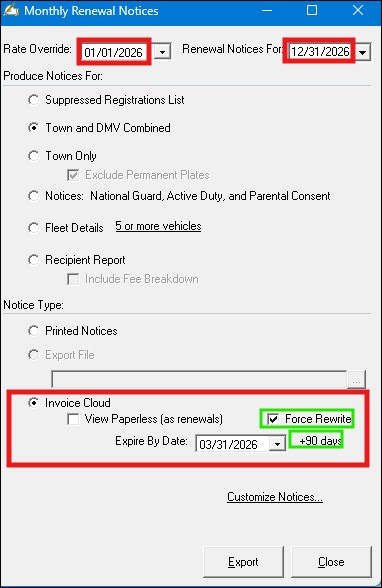
- The Rate Override will allow the December renewals to be re-calculated to the new January rates.
- Checking the Force Rewrite box allows you to upload and overwrite the December renewal file in Invoice Cloud.
- The Expire By Date defaults to whatever you are currently using as your expiration (e.g. the town we used in the above screen shot allows residents 90 days to renew online).
January Registration Renewal Files:
Avitar will email your January registration renewal file first week in December. You have two options regarding importing, printing, and uploading to Invoice Cloud.
Option 1 (Recommended):
Hold your January renewal files until January 1, 2026 (or later). This ensures that the new State fees are automatically applied. You will import, print, and upload as normal.
Option 2 (Clerk 3.5.7 must be installed):
You may upload your January renewal files in December, but additional steps are required to ensure invoices display the correct State fees for your residents:
- Import: Import the January renewal file as usual.
- Print & Mail: Include a customized notice explaining that the fees listed on the renewal notice are valid only through December 28, 2025, for online payments, and through December 31, 2025, for in-office payments.
- Upload: If you accept online payments, also let your customers know that your Online Payment Processor will be disabled from 12/28/2025 (recommended) through 01/XX/2026 (the date you will be back in the office and able to upload a new file).
- Because you are allowing January customers to make online payments through December 28, 2025, verify that your upload settings are configured as follows:
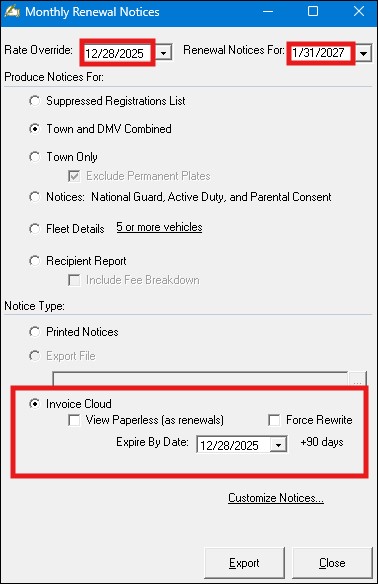
- These settings ensure that the current State 2025 rates remain in effect for January renewals processed online, while also establishing an expiration date in Invoice Cloud (see the Expire By Date box).
- If you select an online payment cut-off date other than the recommended December 28, 2025, enter your chosen date in the Expire By Date field.
- Select Export to upload the file to Invoice Cloud.
- This process must be done for both Town and DMV Combined as well as Town Only files.
- On January 1, 2026, or the first day you are open in January, you will need to re-upload your January renewal file to include the new State fees. To do so:
- Navigate to Utilities | DMV Monthly Renewals | Print Notices.
- Verify that your upload settings are configured as follows:
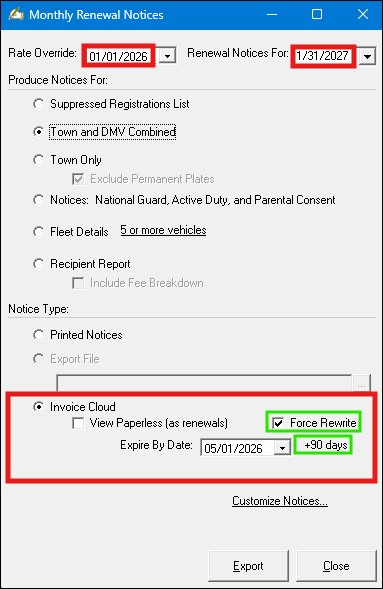
- The Rate Override will allow the January renewals to be re-calculated to the new January 2026 rates.
- Checking the Force Rewrite box allows you to upload and overwrite the January renewal file in Invoice Cloud.
- The Expire By Date defaults to whatever you are currently using as your expiration (e.g. the town we used in the above screen shot allows residents 90 days to renew online).
We understand this is a lot of information, however, we feel it is important for you to know the options you have available and the steps to complete each option. As always, give us a call if you need help with any of the processes listed above.
 Avitar Associates